
Give your idea dimensions.
Start with a board or a sketch. Build in the relationships that make the next change easier.

What Design does
01
Boards in a few fields
Add a board or panel with a name, material and exact dimensions. It becomes an editable sketch and extrusion, ready to move into place.
02
Inches or millimetres, fractions that belong in a shop
Choose inches or millimetres once in Preferences; every readout, field, cut list and PDF follows. Enter dimensions such as 15 3/4 or 400 mm, switch between fractions and decimals, and approximation marks tell you when a displayed value is rounded.
03
Sketches that remain editable
Draw lines (type a length to place the next point exactly), rectangles, circles, arcs, polygons, slots (typed length and angle) and splines, with construction lines that never become parts. Size any line, edge or circle with the Dimension tool (formulas work), mirror geometry across a line, then extrude stock or make a cut.
04
Offset, trim and pattern
Offset an outline for a router template (the guide-bushing offset is worked out for you), trim and extend lines to meet, and repeat holes in a row, a grid or a circle, with an exact 32 mm option for shelf pins.
05
Carved signs and maker's marks
Type words into a sketch and they become outlines, ready to cut as a pocket or stand as raised letters. Letters keep their centres, so an O stays an O.
06
Trace a picture at real size
Put a photo or drawing on the sketch plane, click two points you know the distance between, and trace it at full size with the ordinary tools. The picture stays on your device.
07
Bring in SVG and DXF
Insert a template or a drawing from other CAD at its real size. Lines that meet are joined into outlines you can cut or extrude.
08
Dimensions with relationships
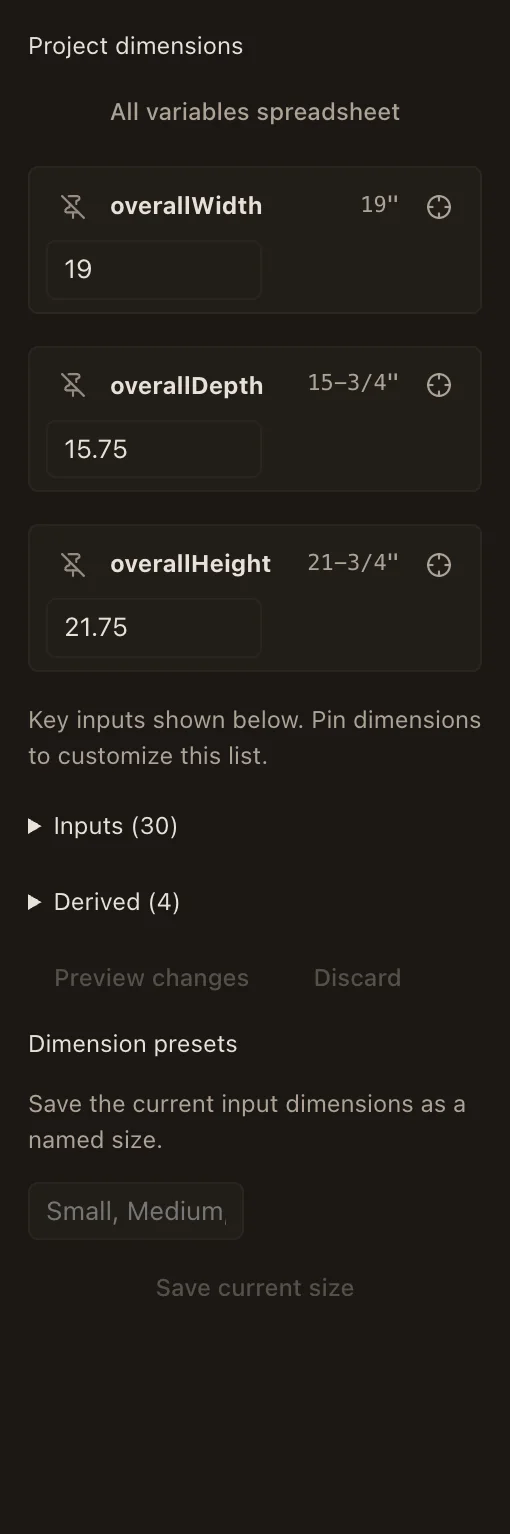
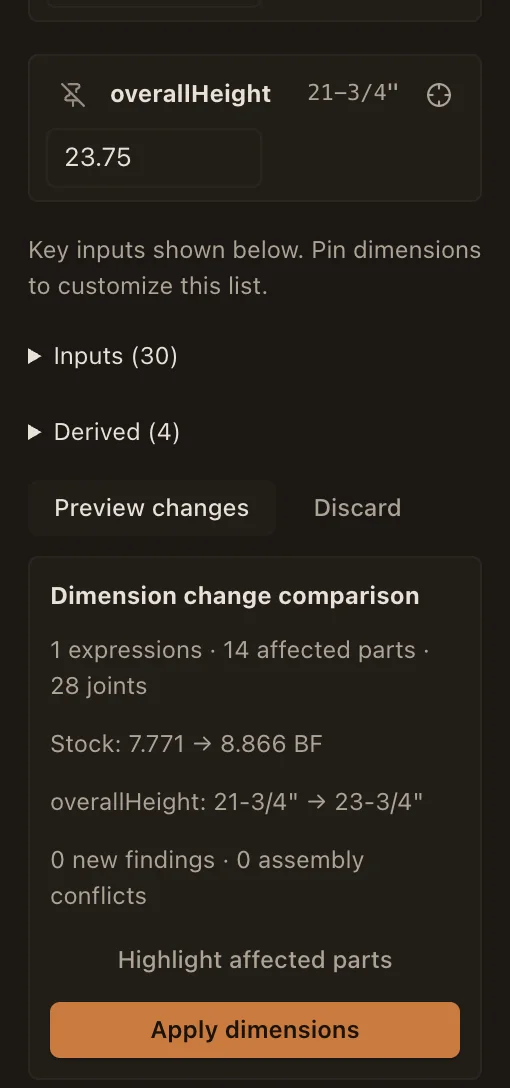
Name your inputs and use formulas for dependent sizes. Preview affected parts and joints before applying a project dimension change.
09
Size presets
Save named sets of input dimensions and compare a different size with the current project before applying it.
010
Several projects open at once
Each open project is a tab in the header. Switching tabs saves the project you leave first, and it comes back as you left it, undo history included.
011
Find the part you need
Search by part name, material, joint or machining operation. Cmd/Ctrl K also brings the command catalog within reach.
012
Materials and edge details
Assign species and stock, choose which way the grain runs (the cut list and the wood-movement check follow it), and add chamfers or roundovers on edges away from the joints.
013
Arrange and repeat parts
Move a part by typing an exact distance in your unit, in world or part directions, with snapping and collision limits; nothing moves until you Apply. Duplicate a part beside the model, or a whole component such as a drawer with the joints inside it; pattern parts along any axis, including stacked upward; mirror a part, splayed legs included, its drilled holes and its joints coming across to the mirror image; and keep related boards together in components.
GrainDraft is meant for a computer or tablet. On a phone it works, but the screen is tight.